You hop on a Zoom or Google Meet call, share your browser window to walk through a doc or product demo, and suddenly everyone on the call can see your saved folders, half-written Google searches, internal Notion URLs, and 24 open tabs—including that job board or bank portal you forgot to close.
Even worse, if you type a single letter into the address bar while sharing, browser autocomplete immediately surfaces your recent browsing history and bookmarked URLs.
The short answer: To hide your bookmarks bar, tabs, and URL bar when screen sharing on a Mac, you have two options:
- Use native browser shortcuts before every call (
Cmd + Shift + Bto hide the bookmarks bar in Chrome and Safari,Cmd + Shift + Fto hide Chrome's toolbar, orCmd + Sto collapse Arc's sidebar). - Use a persistent OS-level screen mask (Scrim) to cover the top toolbar or left sidebar across every browser at once—without entering fullscreen mode or reconfiguring your browser before every meeting. Below is the complete shortcut reference for Chrome, Safari, and Arc, why macOS fullscreen mode often backfires on live calls, and how to set up a reusable browser privacy preset in seconds.
Quick-Reference Shortcuts: Hide Browser UI on macOS
| Browser | Hide Bookmarks / Favorites | Hide URL Bar & Tabs | Hide Vertical Sidebar |
|---|---|---|---|
| Google Chrome | Cmd + Shift + B |
Cmd + Shift + F (Toolbar) |
Cmd + Option + B (Bookmark Manager) |
| Apple Safari | Cmd + Shift + B |
`Cmd + | (View > Hide Toolbar`) |
| Arc Browser | Included in Sidebar | Included in Sidebar | Cmd + S |
(Note: In Chrome, Cmd + Shift + F toggles "Always Show Toolbar in Full Screen." Outside fullscreen, Chrome does not let you hide the URL bar and tab strip natively.)
Why Browser Shortcuts & Fullscreen Mode Still Leak Information
Most screen-sharing guides tell you to press Ctrl + Cmd + F to put your browser into macOS Full Screen mode and hide the top chrome. On a real work call, that advice creates three annoying problems:
- The Hover-Reveal Trap: In macOS Full Screen mode, moving your mouse anywhere near the top edge of the screen causes the hidden menu bar, tab strip, and URL bar to slide right back down into view—usually at the exact moment you reach for a button near the top of a webpage.
- Fullscreen Isolates Your Window: Putting Chrome or Safari into a dedicated macOS Space makes it clunky to
Cmd + Tabover to Slack, Figma, VS Code, or Finder when someone asks a follow-up question. - Address Bar Autocomplete Still Leaks: Even with your bookmarks bar hidden (
Cmd + Shift + B), typing in the address bar still displays matching bookmarks, internal staging domains, and past search queries in the dropdown list. - New Windows & Guest Profiles Reset Your Layout: Opening a clean Incognito window or switching to a separate Chrome profile often brings back the default bookmarks bar or extension icons unless you toggle them off again.
How to Hide Bookmarks, Tabs, and Toolbars Natively by Browser
If you prefer built-in controls and only share a single browser window, here is how to lock down the three most popular browsers on macOS.
1. Google Chrome on Mac
Chrome makes hiding bookmarks easy, though hiding the tab strip without fullscreen requires a workaround:
- Hide the Bookmarks Bar: Press
Command + Shift + B(or click View > Always Show Bookmarks Bar in the macOS top menu bar to uncheck it). - Hide Extension Icons: Click the puzzle-piece Extensions icon next to your address bar and unpin any extensions that reveal personal accounts or internal tools.
- Use a Dedicated "Presenting" Chrome Profile: Click your profile avatar in the top-right corner, select Add, and create a blank profile with zero bookmarks, zero extensions, and an empty search history strictly for screen shares.
- Open Links as Standalone App Windows: For web apps you demo frequently, click More Tools > Create Shortcut... (or Cast, Save, and Share > Install Page as App), check Open as window, and launch that site in its own tab-free, URL-free window.
2. Apple Safari on Mac
Safari gives you cleaner native toolbar controls than Chrome, even in standard windowed mode:
- Hide the Favorites Bar: Press
Command + Shift + B(or go to View > Hide Favorites Bar). - Hide the Sidebar (Tab Groups & Reading List): Press
Command + Shift + Lto collapse the left sidebar so shared Tab Groups and bookmarks stay out of sight. - Hide the Entire Toolbar & Tab Strip: Press
Command + |(or click View > Hide Toolbar). Unlike Chrome, Safari lets you hide the URL bar and tabs without entering macOS Full Screen mode—ideal when you are demoing a single web app and don't need to type new URLs.
3. Arc Browser on Mac
Arc keeps your URL bar, pinned tabs, Spaces, and bookmarks inside a single vertical sidebar on the left:
- Collapse the Entire Sidebar: Press
Command + S(or click the sidebar toggle icon in the top-left corner). - Switch to a Clean Space: Before sharing, swipe to a dedicated "Demo" or "Clean" Space (
Ctrl + 2or trackpad swipe) so your personal pinned tabs and folders are tucked away in another Space even if you briefly reopen the sidebar.
The Zero-Prep Alternative: Mask Browser Toolbars System-Wide with Scrim
If you jump between Chrome, Safari, Arc, and native Mac apps—or simply don't want to remember keyboard shortcuts every time someone says "Can you share your screen?"—you can mask your browser chrome at the display level instead.
Scrim is a lightweight macOS privacy utility that places persistent, floating overlay masks directly above any window on your screen. Because it works at the macOS window layer rather than inside a browser extension, it covers Chrome, Safari, Arc, Brave, Firefox, and native Mac apps simultaneously.
How to Set Up a Reusable Browser Privacy Preset in Scrim:
- Open Scrim on your Mac (free to try with up to 2 masks, no account required).
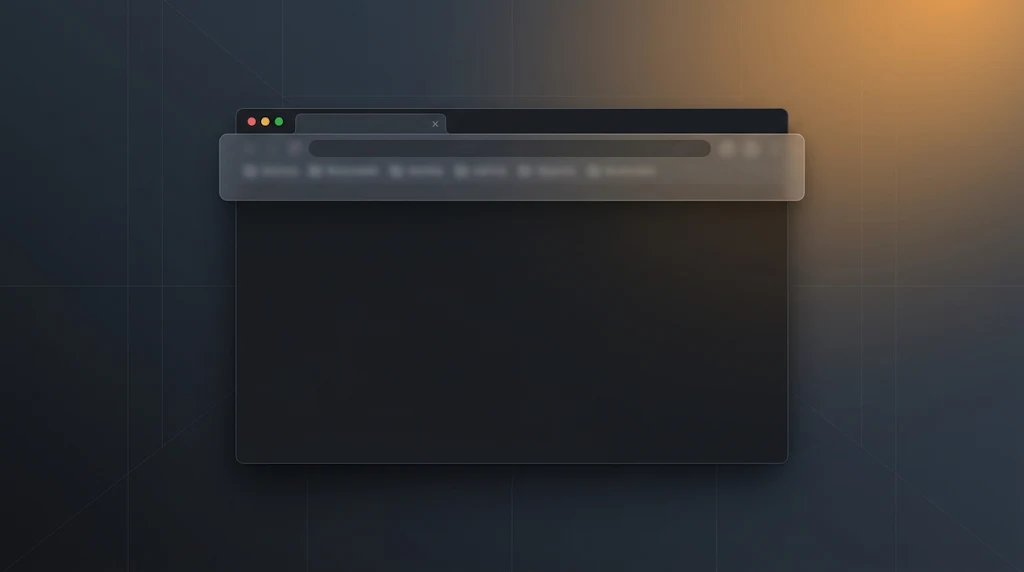
- Create a Top-Strip Mask (for Chrome & Safari): Draw a clean horizontal mask across the top ~90 pixels of your browser window to cover your open tabs, URL address bar, extension icons, and bookmarks bar in one stroke.
- Or Create a Left-Sidebar Mask (for Arc & Safari): Place a vertical mask along the left edge of your screen to hide pinned tabs, Spaces, and bookmark folders while keeping the full webpage visible.
- Save as a Named Preset (Mask Group): Save the layout under a preset like "Browser Demo" or "Client Call." Whenever a meeting starts, toggle your Browser Demo preset on in one click. You keep your normal browser window, normal keyboard shortcuts, and full ability to switch between apps—while viewers on Zoom, Google Meet, Microsoft Teams, or Loom see a clean, distraction-free viewport.
(Want to protect the rest of your desktop at the same time? See our guide on how to hide desktop icons on Mac before a screen share and how to hide notifications while screen sharing on Mac.)
4-Step Pre-Share Browser Check
Before clicking Share Screen in Zoom, Meet, or Teams, run through these four quick checks (or bookmark our complete Mac screen sharing privacy checklist):
- Toggle on your Scrim browser preset (or hit
Cmd + Shift + B/Cmd + Sto hide bookmarks and sidebars). - Share a single browser window instead of your entire display whenever you don't need to switch apps. (See how to stop sharing private windows in Zoom on Mac.)
- Enable macOS Do Not Disturb from Control Center so incoming iMessages, Slack previews, and 2FA codes stay off-screen.
- Keep URLs in a scratchpad or click links directly rather than typing into the address bar live in front of your audience.
Frequently Asked Questions
How do I hide the URL address bar in Chrome without full screen on Mac?
Google Chrome does not offer a built-in keyboard shortcut to hide the address bar in standard windowed mode. You can either open a specific webpage as a standalone window (Cast, Save, and Share > Install Page as App), or place a thin horizontal Scrim screen mask over the top of your Chrome window so the tabs, URL bar, and bookmarks stay hidden while you stay in windowed mode.
How do I hide my bookmarks bar when screen sharing on Mac?
In both Google Chrome and Apple Safari, press Command + Shift + B to toggle the bookmarks/favorites bar off before sharing your screen. In Arc, press Command + S to collapse the entire left sidebar containing your pinned bookmarks and Spaces.
Can you hide the URL bar and tabs in Safari without full screen?
Yes. In Apple Safari on macOS, press Command + | (or select View > Hide Toolbar in the top menu bar) to hide both the tab bar and the URL field while keeping Safari in a normal, resizable window.
Why shouldn't I rely on macOS Full Screen mode (Ctrl + Cmd + F) during screen shares?
In macOS Full Screen mode, moving your pointer near the top of the screen automatically reveals the hidden tab bar and URL field, which can expose private tabs mid-call. Fullscreen mode also locks the browser into a separate macOS Space, making it awkward to switch between your browser and other apps during a live demo.
Share Your Browser Without Sharing Your Browsing History
You shouldn't have to close 30 research tabs or maintain a sterile second browser just to get through a 15-minute screen share.
Download Scrim for macOS to test live screen masks for free—or unlock unlimited masks and saved browser presets across up to 3 Macs for a one-time purchase.