Every developer who shares their screen on Zoom, Slack Huddles, Discord, or OBS knows the split-second panic of accidentally opening a .env file, running env in Terminal, or switching to a browser tab with an unmasked Stripe or AWS key.
Even if a secret is only visible for two frames in a recorded tutorial or live demo, automated scrapers and viewers can capture it—forcing you to drop everything and rotate production keys.
The short answer: Browser blur extensions only protect webpages, and VS Code plugins only mask editor files. To reliably hide API keys, .env files, and secrets across your entire Mac screen, combine three layers:
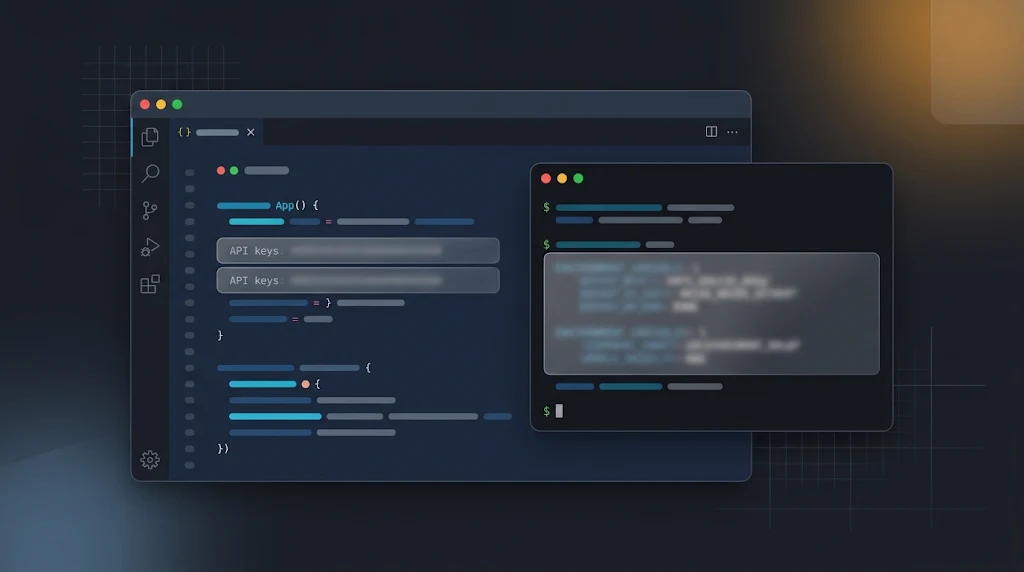
- System-wide screen masks (Scrim): Place persistent, floating masks over any region of your display—covering VS Code sidebars, Terminal panes, and browser dashboards simultaneously—with one-click saved presets.
- Editor-level
.envmasking: Use a VS Code or Cursor extension (like Camouflage or Hide Env) to replace.envvalues with asterisks inside your editor. - Terminal secret redaction: Enable built-in secret redaction in terminals like Warp or clear scrollback buffers before sharing. Below, we break down why browser-only tools fail developers, how to set up a reusable coding demo layout on macOS, and a pre-share checklist to prevent accidental credential leaks.
Why Chrome Blur Extensions Aren't Enough for Developers
If you search for ways to hide API keys during screen sharing, most results point to Chrome extensions like ContextBlur, BlurWeb, or Safe Screen Share. While those tools work well for blurring an email address inside Gmail or a customer name in a web CRM, they leave huge blind spots during technical calls and coding streams:
- They cannot see native Mac apps: A browser extension cannot mask VS Code, Cursor, Xcode, Terminal, iTerm2, Postman, Docker Desktop, or Finder. The moment you
Cmd + Tabout of Chrome, your local environment is completely exposed. - They break when switching browsers or profiles: If you open Safari, Arc, or a fresh Incognito window to test an auth flow, your Chrome extension is no longer active.
- They rely on fragile DOM selectors: Single-page apps and custom developer consoles frequently change class names, causing element-based auto-blur rules to miss tokens or secret fields mid-demo. When you are jumping between an IDE, a terminal window, and a cloud console, you need display-level masking that works on top of every window on macOS.
Method 1: Mask Any App or Screen Region System-Wide with Scrim (Best for Live Demos & Streams)
Scrim is a lightweight, native macOS utility built specifically for live screen sharing and recording. Instead of injecting code into a single browser, Scrim places persistent, floating privacy masks directly above your macOS windows.
Because Scrim operates at the macOS window layer, it works identically across Zoom, Google Meet, Microsoft Teams, Slack, Discord, Loom, QuickTime, and OBS—and collects zero telemetry or screen data.
How to Set Up a Developer Screen-Share Preset in Scrim:
- Launch Scrim on your Mac (you can test up to 2 masks for free with no license required).
- Open your coding workspace—for example, VS Code on the left, Terminal on the bottom right, and your browser dashboard on the top right.
- Draw masks over high-risk zones:
- Place a mask over your Terminal environment block or SSH connection banner.
- Place a strip over your browser bookmarks bar, URL bar, or API key table in AWS, Vercel, Stripe, or Supabase.
- Cover your IDE file explorer sidebar if it reveals private client repositories or internal project names.
- Save the layout as a Named Preset (Mask Group): Group those masks under a preset like "Live Coding Demo" or "Client Walkthrough." The next time you hop on a call, you don't have to scramble to resize windows or redraw boxes. Toggle your Mask Group on in one click, share your screen, and toggle it off the moment the call ends.
(Tip: Check out our complete guide on how to mask or blur part of your Mac screen live for more layout ideas.)
Method 2: Automatically Mask .env Values Inside VS Code & Cursor
If you regularly open configuration files while pair programming or recording tutorials, adding an editor-level extension gives you a second safety net inside your code window.
Recommended Extensions:
- Camouflage (VS Code & Cursor): Automatically hides values in
.envfiles while keeping the variable names visible (e.g.,STRIPE_SECRET_KEY=••••••••••••). You can toggle visibility from the status bar or hover over a value locally without exposing the whole file. - Hide Env: Uses a
.hidefile with.gitignore-style rules to mask secrets across.env,secrets.json, and YAML files. The limitation: Editor extensions only protect text rendered inside that specific editor pane. If you runcat .env, printprocess.envin a debug console, or inspect network headers in DevTools, the secret still appears in plain text—which is why pairing an IDE plugin with a persistent Scrim mask over your console or DevTools panel is the safest setup.
Method 3: Hide Secrets and IP Addresses in Your Mac Terminal
Terminals are one of the most common sources of accidental leaks during live troubleshooting:
- Use Warp Terminal's Secret Redaction: If you use Warp on macOS, enable Secret Redaction under Settings > Privacy. It automatically obscures common API key formats, IPv4/IPv6 addresses, and tokens printed to your terminal output—and lets you add custom regex patterns for internal prefixes.
- Clear scrollback before sharing (
Cmd + K): In Apple Terminal, iTerm2, or Ghostty, pressCommand + Kto wipe previous command output before starting a screen share so oldexportcommands or curl headers aren't sitting above your prompt. - Never echo secrets directly: Instead of printing a key to verify it is loaded, check its character length (
echo ${#OPENAI_API_KEY}) so you confirm it exists without displaying a single character.
Comparison: Developer Screen Privacy Tools on Mac
| Feature | Scrim (macOS App) | Chrome Blur Extensions | VS Code .env Plugins |
Video Post-Editing |
|---|---|---|---|---|
| Works in VS Code, Terminal & native apps | Yes (System-wide) | No (Browser tabs only) | Editor panes only | Yes (After recording) |
| Protects live calls (Zoom, Meet, Slack) | Yes | Browser tabs only | Inside editor only | No (Recorded only) |
| Reusable layout presets across apps | Yes (Mask Groups) | Per-domain rules only | Project config only | No |
| Zero telemetry / offline local-first | Yes | Varies by extension | Yes | Yes |
| Pricing | Free tier / One time Purchase | $15–$60/year subscriptions | Free | $50–$200+ |
5-Second Pre-Share Checklist for Developers
Before clicking Share Screen or hitting Record, run through these five quick checks (or review our full Mac screen sharing privacy checklist):
- Toggle on your Scrim Mask Group covering your terminal output, API dashboards, and bookmarks bar.
- Close or collapse
.envtabs in VS Code, Cursor, or Xcode. - Turn on Do Not Disturb / Focus Mode in macOS Control Center so Slack DMs, 2FA codes, and iMessages don't pop up in the top-right corner. (See how to hide notifications while screen sharing on Mac.)
- Hide desktop icons if you are sharing your full display.
- Share a single window when possible, or keep your Scrim masks active whenever full-screen sharing is required.
Frequently Asked Questions
How do I hide API keys while screen sharing on Mac?
The most reliable way is to use a system-wide macOS screen masking app like Scrim to cover the areas where keys appear (such as your terminal window, browser dashboard, or sidebar) before sharing your screen, paired with a .env masking extension inside VS Code or Cursor.
Do Chrome blur extensions work in VS Code or Terminal?
No. Browser extensions only run inside web browser tabs. They cannot hide sensitive environment variables, SSH keys, or logs inside native macOS applications like VS Code, Cursor, Terminal, or Postman.
What should I do if I accidentally show an API key on a live call or stream?
Treat the credential as compromised immediately. Revoke and rotate the API key in your provider's dashboard (AWS, Stripe, OpenAI, GitHub, etc.) right away, even if it was only visible for a second or if the call was not recorded.
Can I save mask positions for repeated coding demos?
Yes. With Scrim, you can organize multiple masks into named Mask Groups and switch between saved presets in one click—making it effortless to toggle privacy overlays on before every sprint demo, pair-programming session, or tutorial recording.
Keep Your Secrets Off-Screen Without Breaking Your Flow
You shouldn't have to close half your workspace or spend 45 minutes blurring frames in post-production just to share your screen safely.
Download Scrim for macOS to test live screen masks for free—or unlock unlimited masks and saved presets across up to 3 Macs for a one-time purchase.